

Streamlining Progress Reporting with XER Schedule Toolkit
Accurate and consistent progress reporting is essential for maintaining control of project schedules and ensuring that updates reflect the true status of the works. As programmes become more complex and involve multiple contributors, a structured approach to capturing and reviewing progress is required to avoid any miscommunication and data inconsistencies.
XER Schedule Toolkit provides a central platform for viewing and updating schedule information across common planning tools such as Primavera P6, Microsoft Project, and Asta Powerproject.
This guide sets out a clear, step-by-step process for using the Toolkit’s progress reporting functionality to collect, manage and validate schedule information.
Getting Started
Firstly, upload your project file in P6, Microsoft Project or Asta Format to XER Schedule Toolkit.
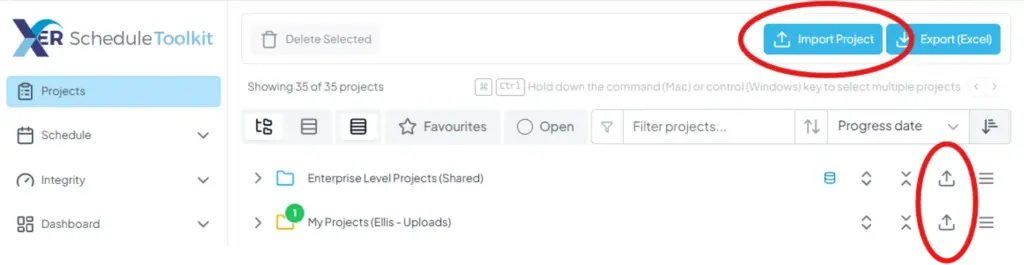
Ensure that the project is shared with the users who will be updating the programme, at this stage, it may be easier to create a share team for the project.
If you are unsure how to create a share team, you can click this link which will show you how.
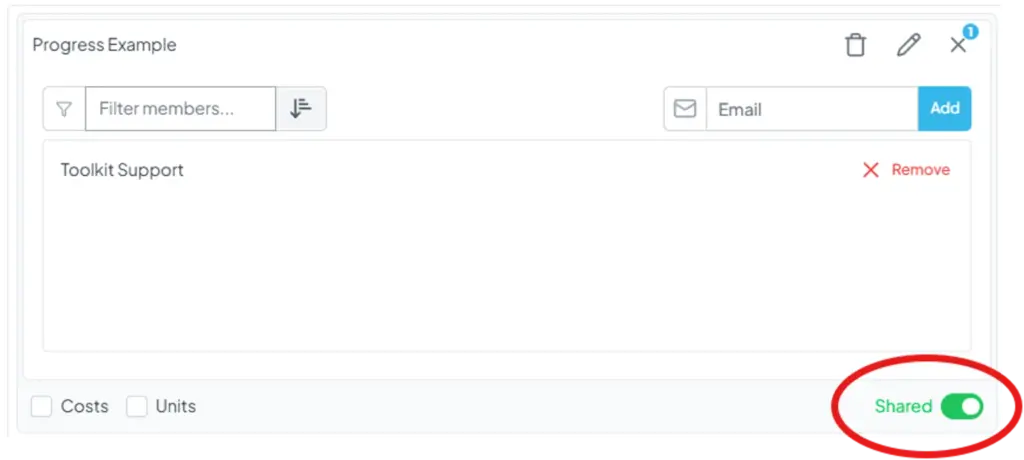
You will then need to open the project you intend on using to collect progress, you can do this by using the toggle switch in the top right corner. Please not that only one project can be open at one time to use this feature.

Accessing the Progress Tools
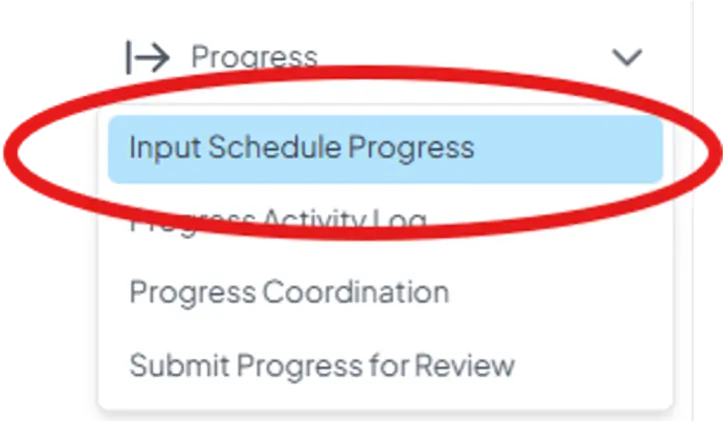
Once you have selected the correct project, click ‘Progress’ and then click ‘Input Schedule Progress’ from the drop-down menu, this will take you to the Schedule View, with appropriate columns added to collect progress. Note: These columns cannot be changed.
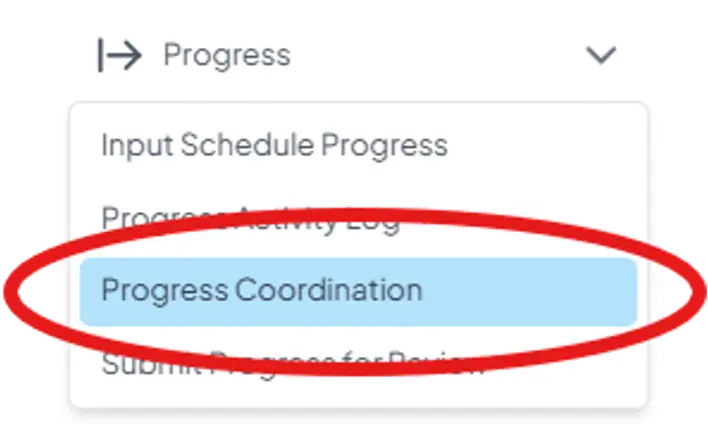
You will then go back to ‘Progress’ and from the drop-down menu, select ‘Progress Coordination,’ this will allow you to create your project team that will be responsible for inputting and reviewing progress.
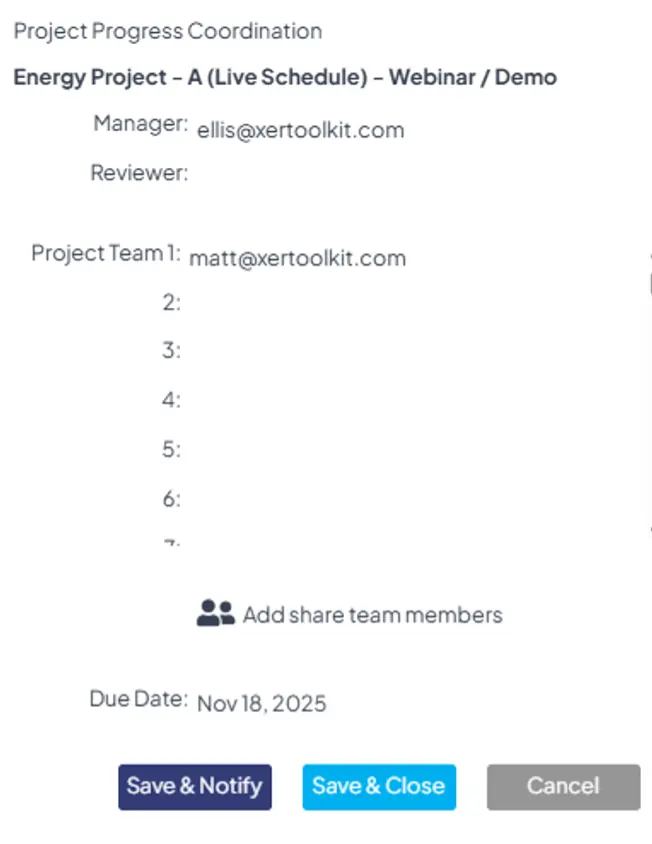
- Manager/Reviewer – Users are responsible for checking progress inputted which may be best suited to the Project Manager & Planner.
- Project Team – Each individual selected to input progress, this may be suited to Works Package Managers or those responsible for reporting on the works.
- You can add previously created share teams to the Project Team by clicking the icon, this can save time if you are working as part of a large team.
Once you have set up your team, select ‘Save & Notify,’ this will email each member of the team explaining that they have been chosen to input progress.
Inputting Progress
Once each selected user receives a notification, they will then be able to log in to XER Schedule Toolkit (via the email link if preferred).
From there they can select ‘Progress’ and choose ‘Input Schedule Progress’ from the drop-down menu. The user will then have access to a default 12-week view of the project which can be further broken down by customised filtering.
On this screen, the user will be able to:
- Assign actual start dates – Image 1
- Assign actual finish dates – Image 1
- Physical % Complete (should activities be in-progress) – Image 1
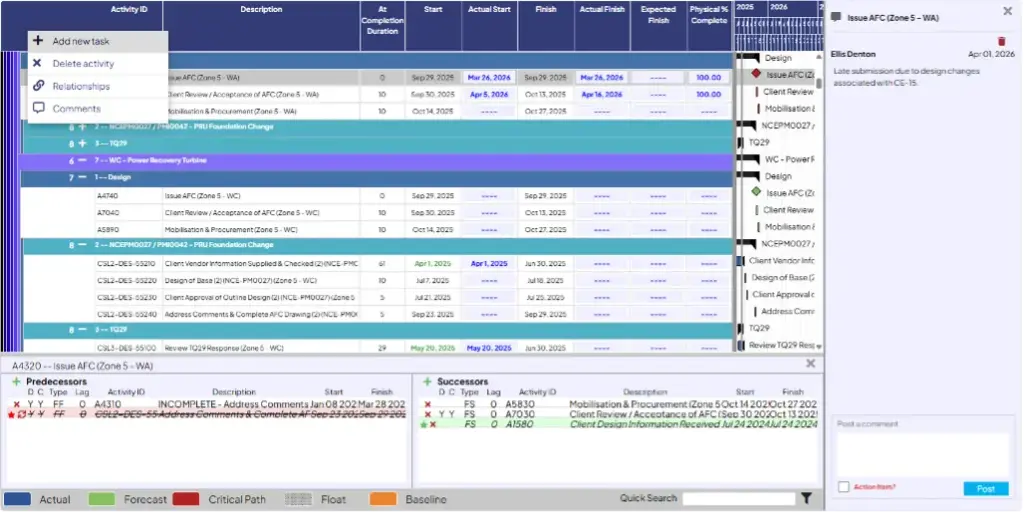
- Propose expected finish dates – Image 2
- Add new activities – Image 2
- Suggest activities to be deleted – Image 2
- Propose logic changes – Image 2
- Provide multi-way commentary, allowing users to keep a record of noteworthy activity changes – Image 2
Image 1:
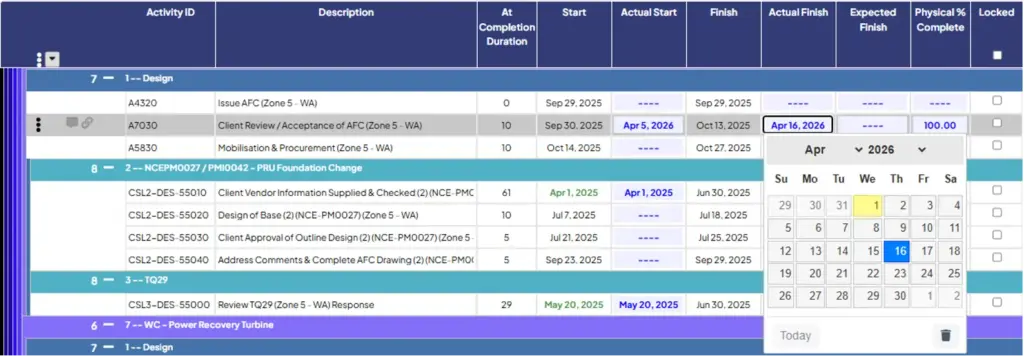
Image 2:
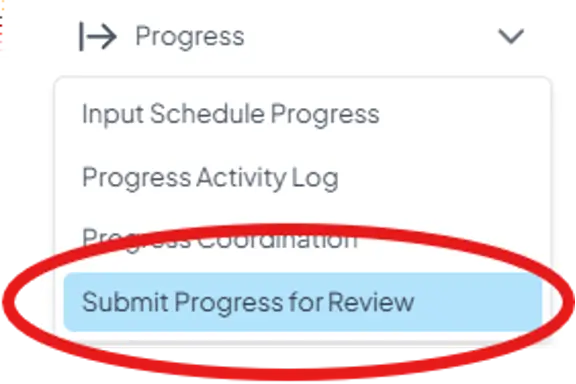
Once the user has finished their progress input, they simply need to click ‘Progress’ and then click ‘Submit Progress for Review.’ Both the Manager & Reviewer will receive an email notification that an update has taken place.
Submitting and Reviewing Updates
Once notified, it is then the responsibility of the Manager/Reviewer to check through the proposed changes to ensure that everything is in order.
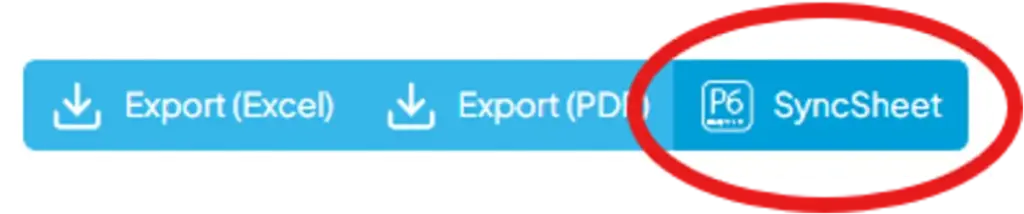
Once an update is complete this can be exported into excel and re-imported into P6 to automatically update progress for the following columns:
- Actual start
- Actual finish
- Physical % Complete (if the activity is in progress) – Note: the % input will also automatically calculate the remaining duration.
All changes are purely at the discretion of the person responsible for updating the programme, checks should be made to ensure the data incoming is accurate.
Key Considerations
Progress cannot be taken off activities that have previously been progressed (Actual Start or Actual Finish applied) – this would need to be amended in P6.
The sync sheet exports only the activities currently shown on screen. So, if you apply filters (for example, Design activities and a 4-week lookahead), update those activities, and then export using the P6 Syncsheet, only those filtered activities will be included in the export.
The sync sheet is strict, and all activity information (based on the filtered view) must be collected to enable the excel sheet to be exported.
- In-progress activities must have a % complete assigned.
- Completed activities mist have an actual start and actual finish date and be marked 100% (Physical % Complete, typically this will be done by default).
Activities can be locked once checked to avoid any further changes.
Emails may sometimes be sent to your junk email, so make sure to check if you cannot see the email in your inbox.
Next Steps
If you’re keen to put this into practice, here are a few ways to get started:
- Explore our tutorials to deepen your understanding and build confidence
- Start a free trial and explore the full platform for yourself
- Browse all features to see everything that’s possible and find what fits your needs